UI Cheats Extension by Weerbesu is one of the most popular mods for The Sims 4. It enhances storytelling and gameplay while saving you time. Instead of memorizing and typing cheats manually every time, this mod adds options directly to your game’s UI, allowing you to enable or disable any cheat and customize it to your needs. For example, instead of typing the “money (amount)” cheat, you can simply right-click your household funds and enter the amount you want. In this article, I’ll show you how to download, install, and use the UI Cheats Sims 4 Extension easily, along with how to fix any compatibility-related issues.
What’s New in v1.59 (Updated August 26, 2026)
Fixed the issue of not being able to pin Wants.
v1.59 (August 26, 2026)
Sponsored
Now it’s compatible with game version 1.127.41.
Reworked the Wants cheat to work without a pop-up.
Updated for game version 1.124.54 with improved compatibility and smoother functionality.
Added support for the new Dynasty Unity cheat, making it easier to manage dynasty-related gameplay and progression directly through the UI menu without digging through multiple settings or commands.
The developer of this mod usually updates the mod when it gets broken after a Sims 4 update, so the next update is expected with the next base game patch (if the mod breaks).
Download UI Cheats Sims 4 Extension
Visit the official Weerbesu Patreon Page to download the latest version of this mod. It is packed in a zip file, and its size is 13.5 MB, so it won’t take a long time to download. Please read the guide below to install it.
How to Install and Activate UI Cheats Extension in The Sims 4?
Once you download the zip file from the above link, here’s how to install & activate it:
Step 1: Extract the Files
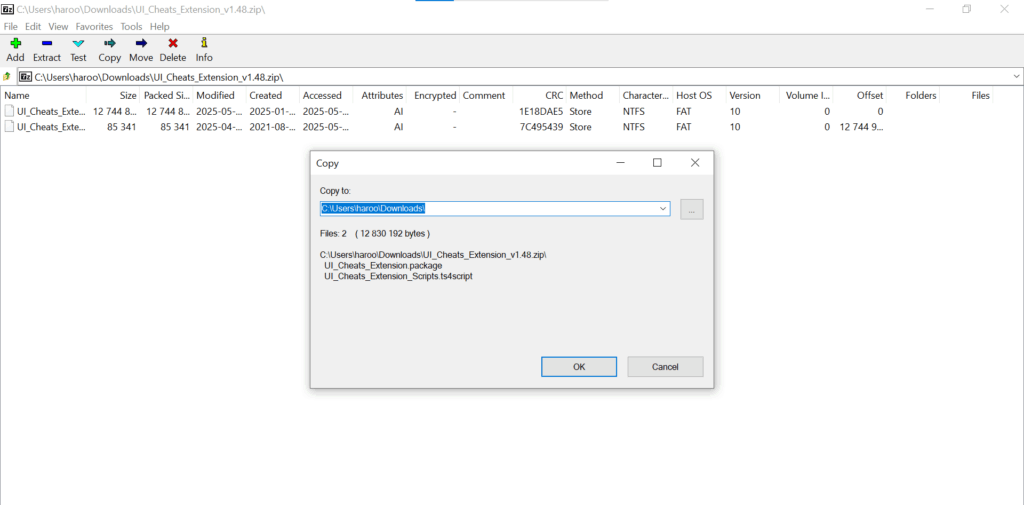
After downloading the .zip file, right-click and choose Extract All. You will see a folder with UI_Cheats_Extension.package and UI_Cheats_Extension_Scripts.ts4script files.
Extracting a zip file
Step 2: Move files to the Mods Folder
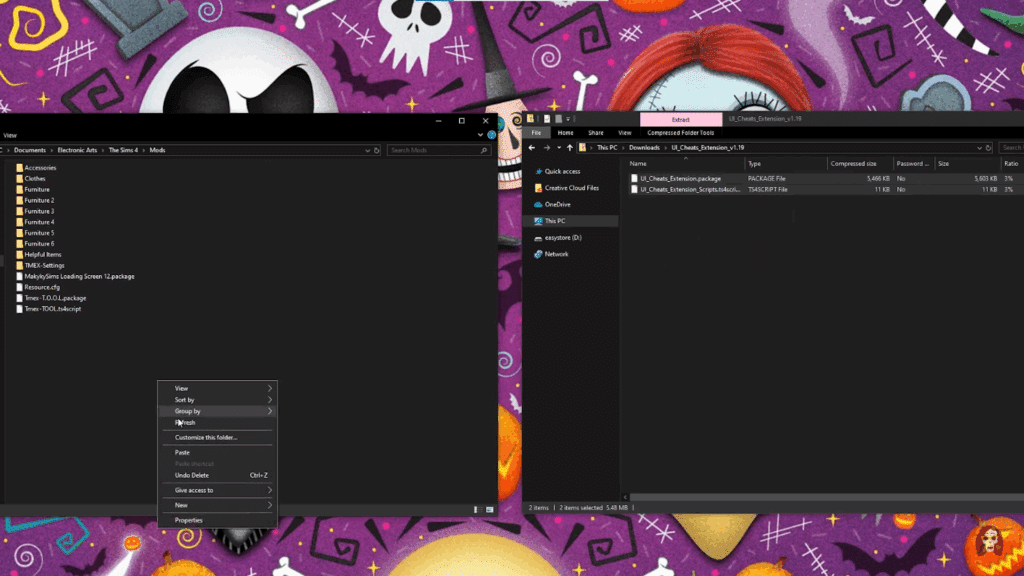
Place both files into your Mods folder at Documents > Electronic Arts > The Sims 4 > Mods. If you are updating the mod, kindly delete the old files.
Move the files to the Mods Folder
Step 3: Enable Mods in the Game
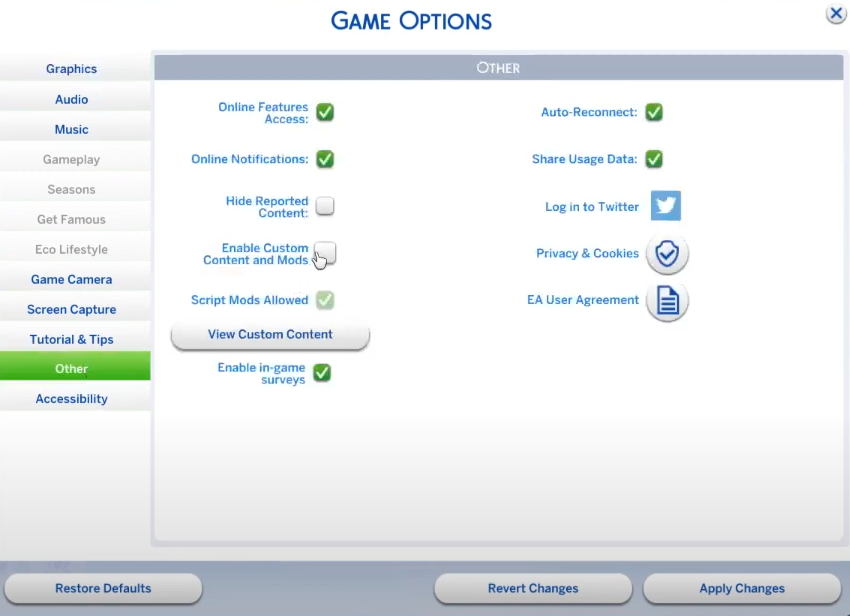
Now open the game and go to Game Options>Other and check the “Enable Custom Content and Mods” and “Script Mods Allowed” options. Then click on Apply Changes and restart your game for the changes to take effect.
Enabling the mods option from game settings
Step 4: Verify Activation
After restarting, a pop-up called “Mods” will appear before the main menu. Look for the UI Cheats Extension by Weerbesu in the list. If it’s listed there, the game has recognized the mod.
Verifying cheat is working or not
Key Features
Here are the main features of this cheat extension:
Right-Click to Add Simoleons Instantly increase or decrease your household funds by right-clicking the money counter.
Adjust Needs Directly Right-click and drag the needs bar value from -100 to 100 for quick adjustments to the Sims’ needs.
Change Relationships Right-click on relationship bars in the Sim profile to adjust friendship or romance levels.
Set Job Performance & Promotions Modify job performance or promote/demote Sims by right-clicking on their career panel.
Control Time Right-click the in-game clock to set the time to any desired value. You can increase or decrease the speed of time according to your needs.
Instantly Complete Aspirations or Milestones Right-click on aspiration goals or career tasks to instantly fulfill them by marking them as completed.
Manage Moodlets You can easily remove unwanted moodlets by right-clicking on them. They are often used during critical moments of gameplay.
Edit University Grades If your Sim is in university, you can right-click to adjust homework, class performance, or final grades.
Modify Household Bills Right-click your bills to pay or remove them instantly.
Basic Controls
The UI Cheats Extension works through simple mouse interactions:
Right-click on most UI elements to access cheat options
Shift + click on some elements for additional functions.
Left-click and drag on specific values to quickly adjust them.
How to use the UI Cheats Mod?
Adjusting Sim Needs
Open the Needs panel for your Sim (bottom left of the screen)
Right-click on any need bar (Hunger, Bladder, Energy, etc.)
Select from the dropdown menu:
Fill Need – Maxes out that specific need
Disable Need Decay – Freezes that need, so it won’t decrease
Enable Need Decay – Turns decay back on for that need
Alternatively, left-click and drag the need bar up or down to set it to a specific level
Modifying Simoleons (Money)
Locate your household funds in the top-right corner of the screen
Right-click on the Simoleon amount
Choose from quick options:
Add §1,000
Add §10,000
Add §50,000
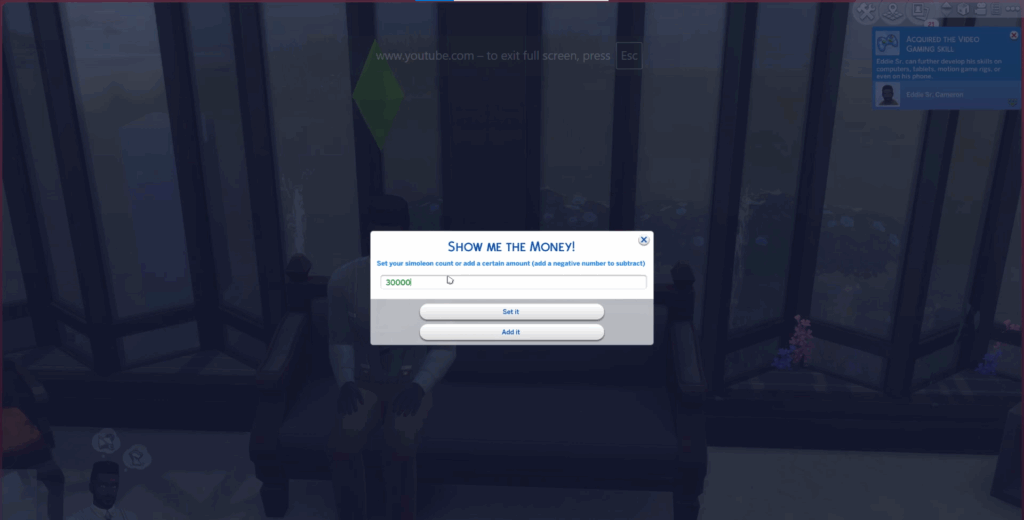
Or select “Set Household Funds” and type in your desired amount
Changing Skills
Open your Sim’s Skills panel (through the Simology panel)
Right-click on any skill bar
Select “Max Skill” to instantly reach level 10
Or select “Set Skill Level” and choose your desired level (1-10)
You can also left-click and drag the skill bar to adjust it manually.
Right-click on the Skill Mastery Perks title bar to add mastery perks.
Right-click on a mastery perk to remove it.
Adjusting Career Progress
Open your Sim’s Career panel
Right-click on the career progress bar
Choose from options:
Promote – Instantly move up one level
Demote – Move down one level
Max Career – Jump to the highest level in that career track
Right-click on the Performance bar to instantly fill it
Modifying Age and Life Stage
Click on your Sim to open their portrait
Right-click on the Age bar (shown when you hover over the portrait)
Select “Age Up” to move to the next life stage immediately
Or use “Set Age” to choose the exact number of days until their next birthday
Manipulating Relationships
Open the Relationships panel for your Sim
Right-click on any relationship bar
Choose options like:
Max Friendship – Sets friendship bar to 100%
Max Romance – Sets romance bar to 100%
Introduce – Makes Sims know each other without meeting
Left-click and drag the bars to set custom relationship levels
Editing Traits and Aspirations
Open your Sim’s Simology panel
Right-click on a trait slot
Select “Remove Trait” or “Add Trait” from the menu
Choose from the available traits list
Right-click on Aspiration to change it without losing progress
Locking/Unlocking Moods
Open your Sim’s Emotions panel
Right-click on the current emotion icon
Select “Lock Emotion” to keep your Sim in that emotional state
Select “Unlock Emotion” to return to normal emotional changes
Common Issues and Fixes
Issue: Some players experience a broken or misaligned game interface after installing the Sims 4 UI Cheats Extension. In this issue, the mod itself works, but the icons along the bottom of the screen appear misplaced or incorrect. This usually occurs when the mod’s version doesn’t match the latest game update or when other UI-related mods are installed that are no longer compatible. Even if UI Cheats is the only mod in your Mods folder, running an outdated version or using an older game version can still cause these issues.
To fix this:
Update The Sims 4 to the latest version
Remove outdated or conflicting UI mods
Download the newest UI Cheats Extension from the official source
Restart your game after applying changes to ensure the interface loads correctly
Game Crashing After Installation: The crashes are usually signs of mod conflicts or corrupted files. To fix this issue, clear the localthumbcache.package file from the Sims 4 folder and remove any outdated mods. If the issue persists, temporarily deactivate all other mods and recheck it.
Conclusion
In this article, I guide you through the process of downloading, installing, and using it on your system, highlighting its main features. I love using this mod because I dislike writing cheats every time; this mod makes it easy. Sometimes, I use it for fun and to pass the time, to see what would happen if I used this option. It’s fantastic, and my first choice is to use it. If you’re looking for the latest version, check back later. I’ll update the page as soon as a new one goes live after a new Sims 4 update. Thanks for reading all the way to the end. If you love to use mods, you must also try the MC Command Center and Basemental Drugs mods to enhance your experience. If you are facing any issues, please let me know through the comment section, and I will provide a solution ASAP.
Frequently Asked Questions
What are UI cheats in Sims 4?
UI Cheats Extension is a mod for The Sims 4 that lets you use cheats directly through the game’s interface. Instead of typing codes into the cheat console, you can right-click things like needs, bars, money, or relationships to make instant changes. It makes using cheats much faster and more user-friendly.
Are UI cheats a script mod?
Yes, it is a script mod that uses a combination of script and package files to function. That’s why it’s essential to place the script file no more than one folder deep inside your Mods folder and make sure “Script Mods Allowed” is enabled in the game settings. Without this, the mod won’t work correctly.
What is a UI extension?
It’s a mod for The Sims 4 that allows you to use cheats with just a single click. Instead of typing commands, you can right-click on things like needs, money, or relationships to make instant changes.
Why aren’t UI cheats working in Sims 4?
It will not work if the script file is too deep, script mods aren’t enabled, or the mod is outdated.
Haroon is a gaming-focused tech enthusiast who breaks down complex updates from games like PUBG, GTA, and The Sims 4 in a clear, easy-to-follow way. He is also the creator of the Wordrix and Wordrix Pro Android games.