
Close Menu

    Subscribe to Updates

    Stay updated with the latest gaming news, tutorials, and how-to guides from Gamuters.

    What's Hot

    How to Check Telenor Answers?

    December 16, 2025

    How to Register yourself for PMWR Tournament? Complete Guide

    December 15, 2025

    PIG Meme Coin Turning Satire Into Market Cap

    December 11, 2025
    Facebook X (Twitter) YouTube WhatsApp
    Wednesday, 24th December 2025
    Facebook Telegram X (Twitter) Pinterest
    GamutersGamuters
    • Telecom
    • Downloads
    • Gaming
      • PUBG Mobile
      • The Sims
    • Contact
    Subscribe
    GamutersGamuters
    Home»Windows»How to Make a Bootable USB for Windows 11
    Windows

    How to Make a Bootable USB for Windows 11

    Haroon RashidBy Haroon RashidDecember 21, 2025Updated:December 21, 20254 Mins Read
    Share Facebook WhatsApp Twitter Reddit Pinterest Telegram Email
    a usb drive with windows showing How to Make a Bootable USB for Windows 11
    Easy way to Make a Bootable USB for Windows 11

    If you want to install Windows 11 on your PC and need a bootable USB drive. Here is how to make a bootable USB for Windows 11. There are four different ways to make a bootable USB you can use any method that is easy for you. You can make any USB bootable for Windows 11 with Rufus, the Windows Media Creation tool, Wintoflash, and the CMD command.

    Table of contents

    • Why to make a USB Bootable?
    • How to Make a Bootable USB for Windows 11?
      • Method 1: Using Windows Media Creation Tool
      • Method 2: Using Rufus to make a USB Bootable
      • Method 3: Using Win to Flash
      • Method 4: Make a USB Bootable Through CMD
    • Conclusion

    Why to make a USB Bootable?

    To install Windows 11 on your PC, it is necessary to make a USB bootable so that it can easily run Windows files into your system to begin the installation process. So that’s why everyone chooses to install Windows through USB.

    How to Make a Bootable USB for Windows 11?

    There are four ways to make a USB bootable. You can use any method that works for you.

    Method 1: Using Windows Media Creation Tool

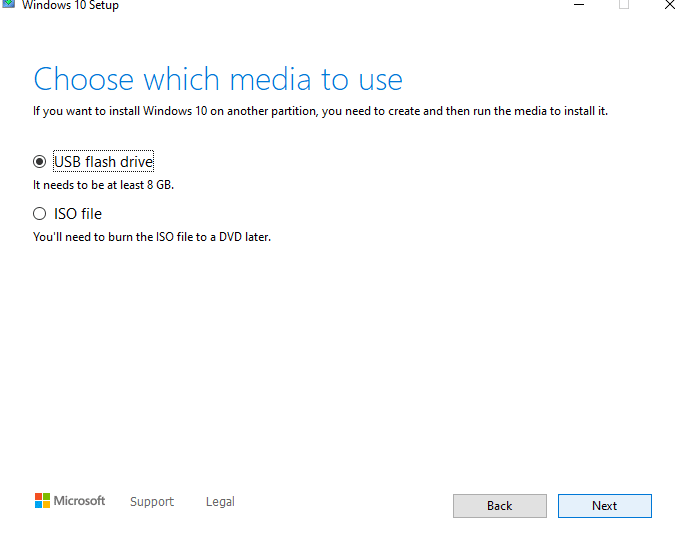
    Windows Media Creation Tool is an official tool to make a USB drive bootable or to download an ISO file of Windows 11 in 32-bit or 64-bit. To get started, download the Windows Media Creation tool from the official Microsoft website. Now follow these steps:

    • Connect your USB drive with your PC
    • Run “Windows Media Creation Tool” as Administrator
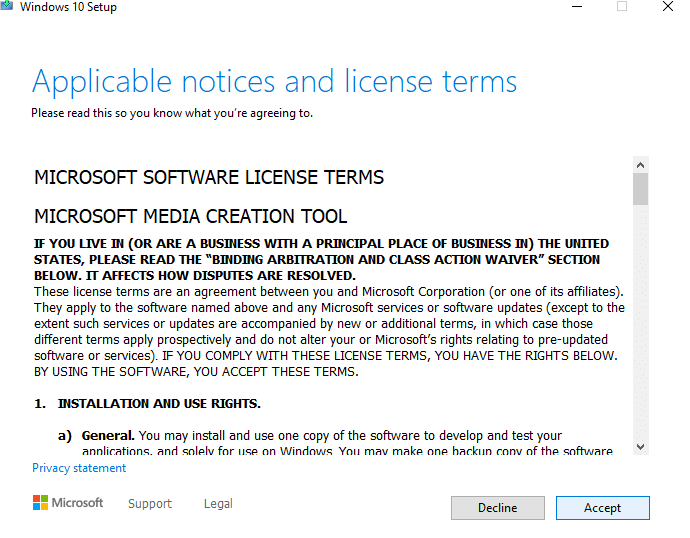
    • Accept “terms & conditions” and press next
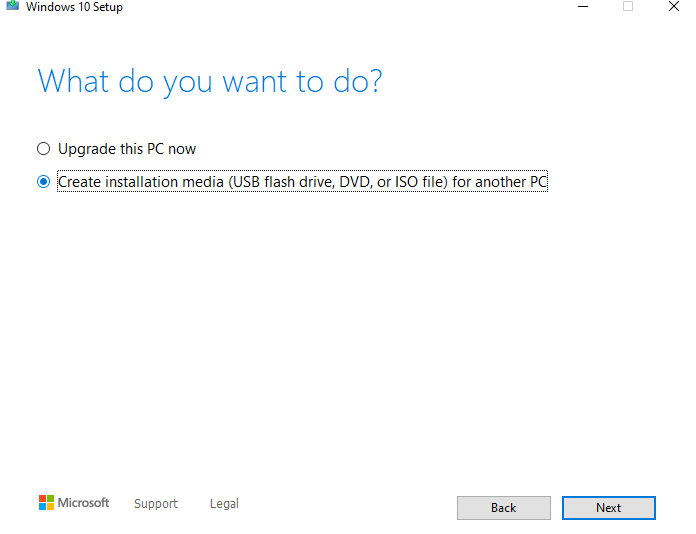
    • Select “Create installation media for another PC” and press Next
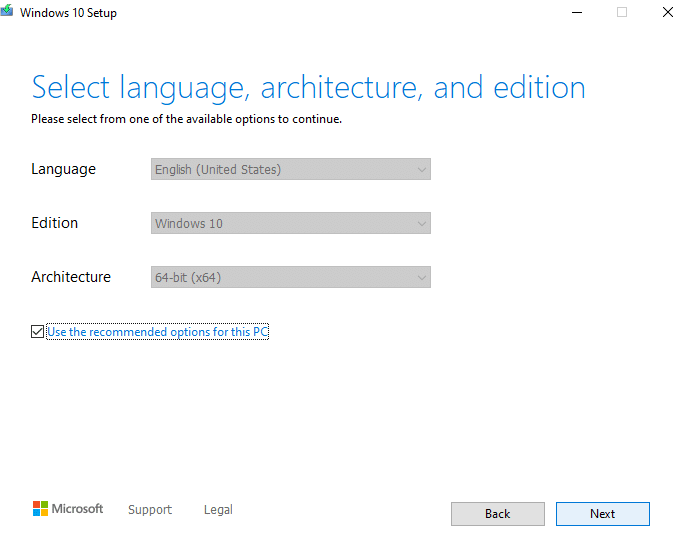
    • Select Language, Windows 11 Edition and Architecture then press next
    • Now select “USB Flash Drive” and Next
    • Now it will automatically make your USB bootable.

    Method 2: Using Rufus to make a USB Bootable

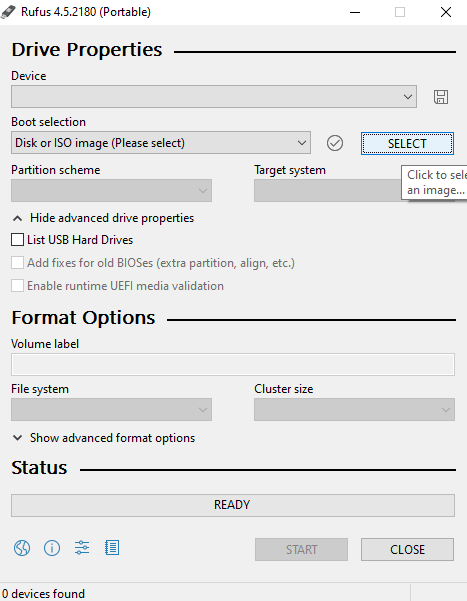
    Rufus is a third-party application that is used to make USB bootable. To get started download the Rufus portable application from its official website. Now follow these steps:

    • Run “Rufus.exe” as Administrator
    • Select the USB drive first
    rufus is making USB bootable
    • Now locate and select the ISO file of Windows 11 from your computer
    • Choose USB format as NTFS (Recommended)
    • Press Start

    It will take up to 5 minutes to make your USB bootable.

    Method 3: Using Win to Flash

    WinToFlash is also a third-party tool that is used to make bootable USB drives for different Operating Systems like Linux, Chrome OS, Android OS, and Windows. It will be the best option if you use Windows to flash to make a Windows 11 bootable USB drive. To get started, download the Win to Flash from Google and follow these simple steps:

    • Run “Win to flash” as Administrator
    • Close the Startup Wizard
    • Select “Multiboot USB Drive Creation Menu.”
    • Choose your USB device
    • Click on Add and select the ISO file of Windows 11.
    • Now navigate to “Format and Layout” and select NTFS format.
    • Now press “Run.”

    Your USB device will become bootable within 4-5 minutes.

    Method 4: Make a USB Bootable Through CMD

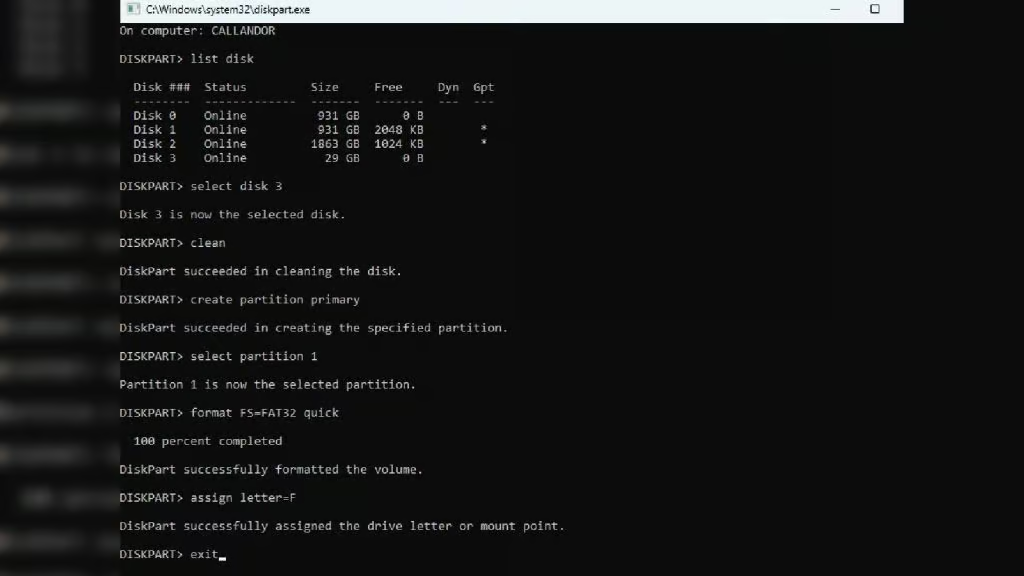
    This method is only for expert users. If you are not aware of PowerShell or Command Prompt, don’t use this method:

    • Insert USB Drive
    • Open Command Prompt as an administrator
    • Type diskpart
    • Type list disk And note the USB drive number
    • Type select disk X (Replace X with USB drive number)
    • Type clean
    • Type create partition primary
    • Type select partition 1
    • Type format fs=ntfs quick or format fs=fat32 quick for UEFI compatibility
    • Type assign
    • Type active
    • Type exit to leave DiskPart
    • Copy Windows 11 files from the mounted ISO or extracted folder to a USB drive
    • Safely eject the USB drive
    Make USB Bootable Through CMD
    Download Windows 11 ISO

    Conclusion

    In conclusion, there are several ways to make a USB bootable for Windows 11. Using the same method, you can easily make any USB bootable for any operating system. After making a bootable drive, install Windows on your system. If you need any assistance, just leave a comment, and I will give you a solution ASAP.

    Also Check: Upgrade Windows 10 to 11 on Unsupported hardware

    Follow on Google News Follow on WhatsApp
    Share. WhatsApp Facebook Twitter Tumblr LinkedIn Email
    Previous ArticleHow to Install Windows 10 From USB Drive
    Next Article Is Pubg Cross Platform? [Xbox, PC, PS4, PS5 and Mobiles]
    Haroon Rashid
    • Facebook
    • Instagram
    • LinkedIn

    Haroon is a gaming-focused tech enthusiast who breaks down complex updates from games like PUBG, GTA, and The Sims 4 in a clear, easy-to-follow way. He is also the creator of the Wordrix and Wordrix Pro Android games.

    Related Posts

    Windows

    Windows 11 25H2 WSUS Release date and features

    December 20, 2025
    Windows

    Microsoft Releases Windows 11 25H2 With AI Features and Interface Tweaks

    December 21, 2025
    Windows

    Microsoft offers Extended Security Updates for Windows 10: Here is how to Enroll in it

    December 21, 2025
    Add A Comment
    Leave A Reply Cancel Reply

    Top Posts

    Windows 11 25H2 WSUS Release date and features

    December 20, 2025

    Microsoft Releases Windows 11 25H2 With AI Features and Interface Tweaks

    December 21, 2025

    Microsoft offers Extended Security Updates for Windows 10: Here is how to Enroll in it

    December 21, 2025

    Subscribe to Updates

    Stay updated with the latest gaming news, tutorials, and how-to guides from gamuters.

    Gamuters logo in white color
    Facebook X (Twitter) Pinterest WhatsApp Instagram YouTube

    Popular

    • Android & iOS
    • Windows OS
    • Telecom
    • Mobile Brands
    • The Sims
    • PUBG News
    • Web Stories

    Download

    • The Sims 4
    • PUBG Mobile
    • BGMI
    • Project IGI 1
    • PvZ Fusion
    • Gameloop
    • SnapTube

    Information

    • About Us
    • Contact us
    • Disclaimer
    • Privacy Policy
    • Terms of Service
    • Write for Us
    • Website Sitemap

    Subscribe to Updates

    Stay updated with the latest gaming news, tutorials, and how-to guides from gamuters.

    © 2025 gamuters | All Rights Reserved | Developed by UNIDAC.

    Type above and press Enter to search. Press Esc to cancel.